


We're all beginning to settle into our post-COVID lives. The lockdowns have mostly subsided; normalcy has already started to return. Like the aftermath of a natural disaster, we are reviewing the wreckage. How do we pick up the pieces and carry on?
Yet, unlike a natural disaster, the long-term effects of COVID are likely to be more behavioural, than structural. It’s our everyday lives that have been most affected. In business, this means more remote work, and with it, the predominance of the virtual meeting.
Even months in, many of us are still grappling with this new technology. After all, we’ve had more worrying and pressing matters with which to deal. But now, as work picks up, we can get back to learning the ropes.
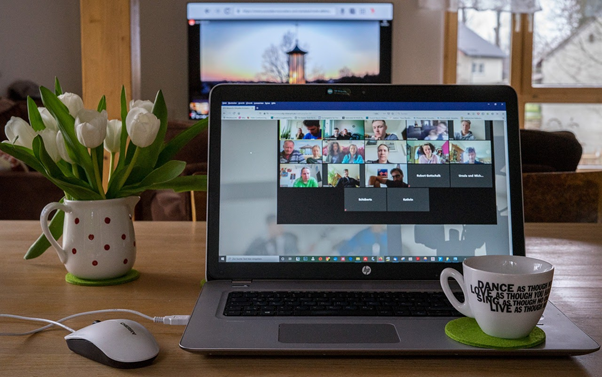
Therefore, to help out, we've put together a handy guide for when you set-up your next virtual meeting. So, you never need to be underprepared again.
Test Your Camera And Audio
We all remember meetings where the host hasn't set-up properly. Nothing works. They spend the first fifteen minutes floundering around trying to get the projector to link to their laptop. Then, the audio doesn't work. Everyone else sits there either bemused or frustrated. With virtual meetings, there are even more things that can go wrong. But two of the main culprits are your camera and audio.
Prior to the start of the meeting, record a practice video or schedule a quick call with a colleague. By doing so, you'll quickly identify any problems. One of the most common issues is the feed for the audio or camera. Such an error can be solved easily in the setting section of your video conferencing platform.
Consider Lighting And Positioning
I bet you’ve never attended a meeting considering how to light yourself. Nor wonder how to capture your best angle. Such thoughts would have been previously regarded as vain. Yet, this is now essential to great virtual meetings.
In regards to lighting, you want bright natural light. A window is ideal. Position yourself adjacent or in front. If the window is behind you, you'll be cast in total darkness. Additionally, avoid lamps. They tend to cast dark shadows, and as such will give you a gloomy look. If you have to use lamps, you may consider a circular LED lamps.
When positioning your camera, aim to have it at eye-level. Below your face and you’ll be stretched out. Plus, you’ll give everyone a prime view up your nose. And don’t put the camera above your face or you’ll appear smaller than you are. Instead, stack up some books and pop the laptop on top.
Virtual Backgrounds
Virtual backgrounds are a lifesaver. These days we live busy lives. We have children or pets to attend to. We have second jobs, or we look after loved ones. We don’t always have time to get the place looking 100%. Or we might not be able to afford the apartment of our dreams. That’s where virtual backgrounds come in.
This handy bit of software uses green screen technology to replace your backdrop with the one of your choosing. Plus, you're spoilt for choice. The zoom backgrounds collection by Hello Backgrounds has hundreds of HD photos and videos from which to choose. So, whether you prefer stylish apartments or swanky boardrooms, the choice is yours.
Internet Connection
Lagging video and audio are the nightmare of the virtual meeting. The meeting stutters along as you catch every other word. The problem is bandwidth. Or rather, not enough of it. As such, it is vital to test out your internet before a meeting.
Firstly, locate yourself near the router. If the Wi-Fi signal needs to go through multiple walls, it will slow things down. However, if you need to be located elsewhere, some devices can boost your signal. Speak to your internet provider.
If there are others in the house on the internet, ask them to refrain from high bandwidth activities such as streaming or gaming.

Review The Agenda
It's easy for a virtual meeting to get off track. With a lack of social interaction and tradition cues, the conversation often derails or get side-tracked. Therefore, the use of an agenda is advised. It gives a set of points for everyone to stick to. If people are struggling to know what to say, the items of the agenda form a series of conversation-starters. At the very least, have a rough outline of the direction of the meeting. It will also make you more productive.
